
Blender's widgets and interactions
Every drag rule, shortcut and menu trick BUI copies from Blender, so you know exactly what your users' hands will feel.
Blender’s interface is famous for how it feels: number fields you scrub without lifting the mouse, math you can type into any number field, menus you can search by typing two letters. BUI gives your app all of it, with no extra code.
This page lists each behaviour precisely, so you can tell your users what to expect, and so you know what to test.
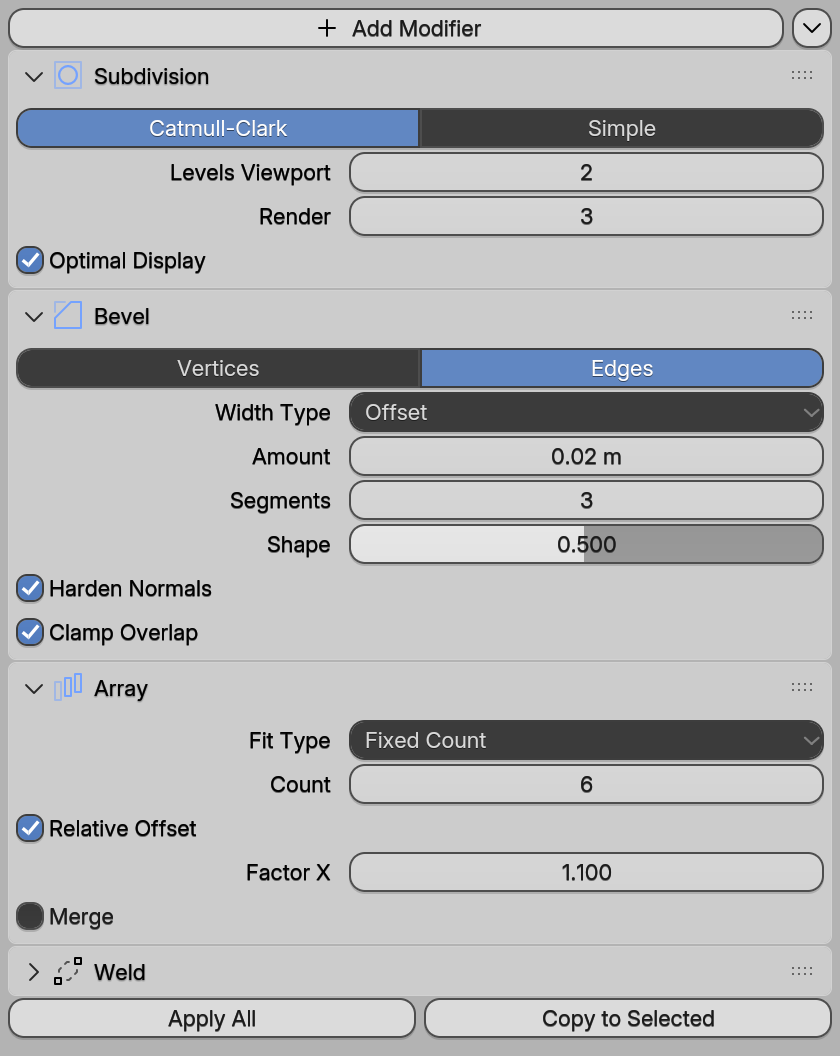
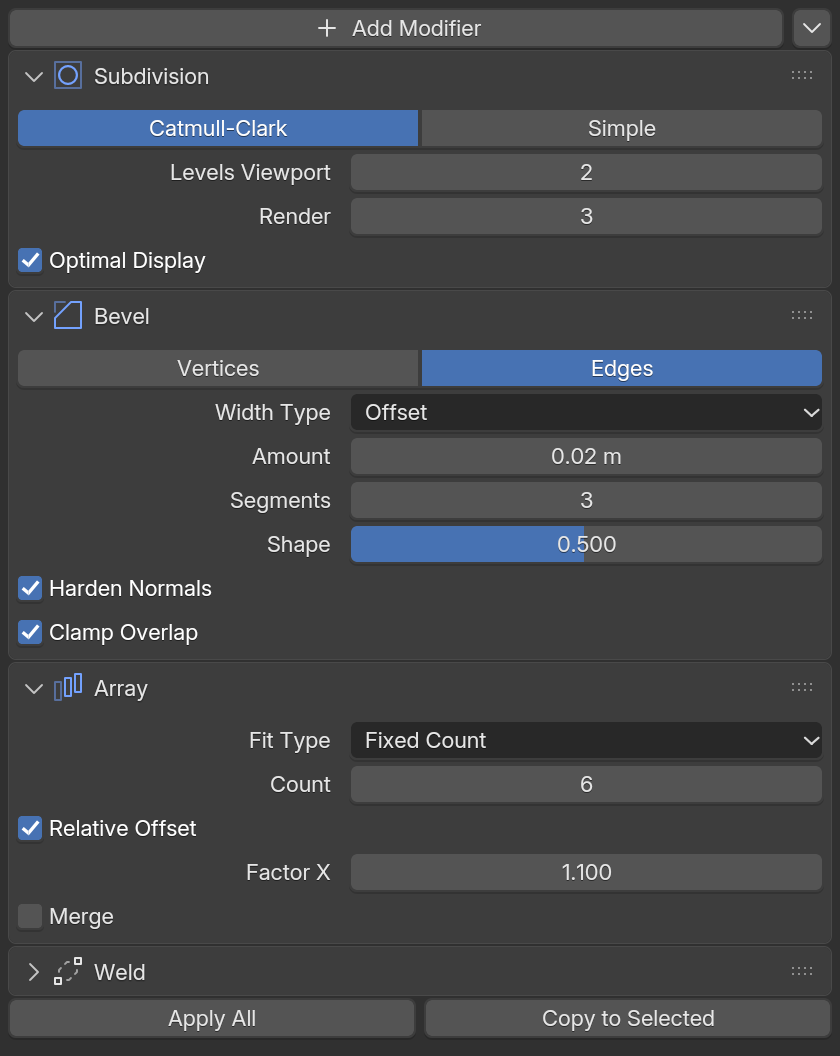
examples/site/kit_modifiers.c).Where these rules apply
The rules live in the C kit, so they work the same in every API that draws Blender widgets:
- Python: the Blender components, tkinter syntax (
Scale,Spinbox,Checkbutton…) and Qt syntax. - Rust and JavaScript: the Blender components (
<NumberSlider>,<Checkbox>…) and form controls insidestyled. Plain HTML elements behave like a browser’s. - Dear ImGui: the Blender-widgets build (
BUI_IMGUI_BLENDER_WIDGETS=ON).DragFloatbecomes Blender’s number field,SliderFloatits slider, checkboxes drag-toggle, and menus and combos become Blender’s menus. - C: every kit widget.
Number fields
A number field shows a value you can drag, click or type into. Over one, the pointer turns into left-right arrows.
Drag to scrub. Press and drag sideways. The cursor hides and wraps, so you never hit the edge of the screen. When you let go, the cursor comes back where the drag started.
- A float moves one click step per pixel.
- An integer moves 1, ½ or 1/16 per pixel, depending on its range.
- Hold Shift to move at a tenth of the speed.
- Movement inside the small drag threshold is ignored, so the value doesn’t jump when the drag starts.
- Past a limit (
minormax), the drag’s starting point moves with the pointer, so dragging back responds at once. - Esc cancels the drag and restores the value.
Snap with Ctrl. Hold Ctrl while dragging, and BUI snaps by Blender’s rules. Ctrl+Shift snaps finer.
| Kind of value | Ctrl snaps to |
|---|---|
| Unbounded float | Whole units |
| Angle | 10° |
| Slider | 0.1, 1 or 10, depending on its range |
| Integer | Multiples of 10 |
Click to type. Click the field, or Ctrl-click it, and type a new value. A drag that changed nothing counts as a click.
Math in number fields
When you type into a Blender number field or slider, you can type an expression instead of a number. Text fields (plain HTML inputs, tkinter’s Entry, QLineEdit, ImGui’s InputText) keep what you type as text. BUI evaluates it with Blender’s own expression evaluator (expr_pylike_eval.cc):
2*pi → 6.283185…90/4 → 22.51e3 → 1000min(4, 3) → 3round(1.7) → 2x if c else y → Python-style conditionalsFrom Python, buipy.kit_eval_number("2*pi") runs the same evaluator.
Sliders
A slider is a number field with a fill bar.
- The value follows the pointer across the slider’s width, from where the drag began.
- Shift moves at 1/20 of the speed.
- When the drag ends, the pointer is put back at the value’s position.
- Ctrl snaps to 0.1, 1 or 10, depending on the range.
Shortcuts on any value
Hover a value (number, slider, checkbox, color …) and use these:
| Keys | What happens |
|---|---|
| Ctrl+Wheel | Steps the value up or down |
| Ctrl+C / Ctrl+V | Copies or pastes the value |
| Ctrl+Alt+C / Ctrl+Alt+V | Copies or pastes a whole vector (X, Y and Z together) |
| Backspace | Resets to the default |
| - | Negates a number |
| Right-click | Opens the context menu: Copy, Paste, Reset |
Several fields at once
Drag down to collect. Press a number field and drag down over the fields below it. Each one joins the drag. Then drag sideways to change them all together. It’s how Blender users set X, Y and Z scale in one motion.
Alt for linked fields. Hold Alt while editing one field of a linked group (like X/Y/Z), and all of them change.
Drag across toggles. Press a checkbox and drag across its neighbours to set them all to the same state, in one stroke. Panel headers work the same way: drag across them to open or close them all.
Panels
- Click a header to collapse or open the panel, with Blender’s animation.
- Ctrl-click a header to open that panel and close the others.
- Drag a header’s grip to reorder panels.
- Sub-panels are indented and laid out as in Blender’s properties editor.
Menus and search
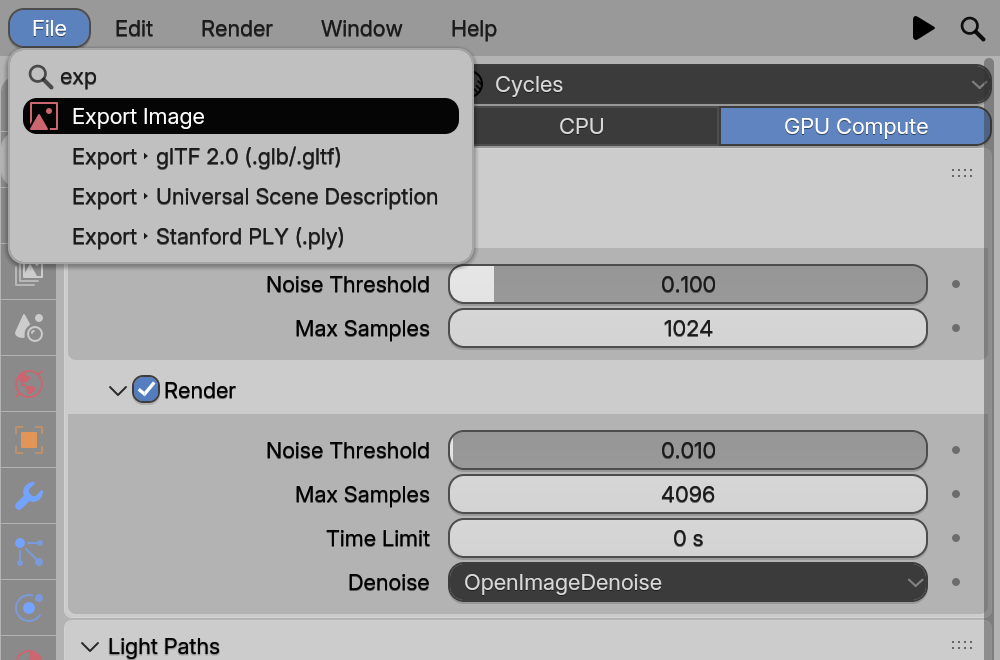
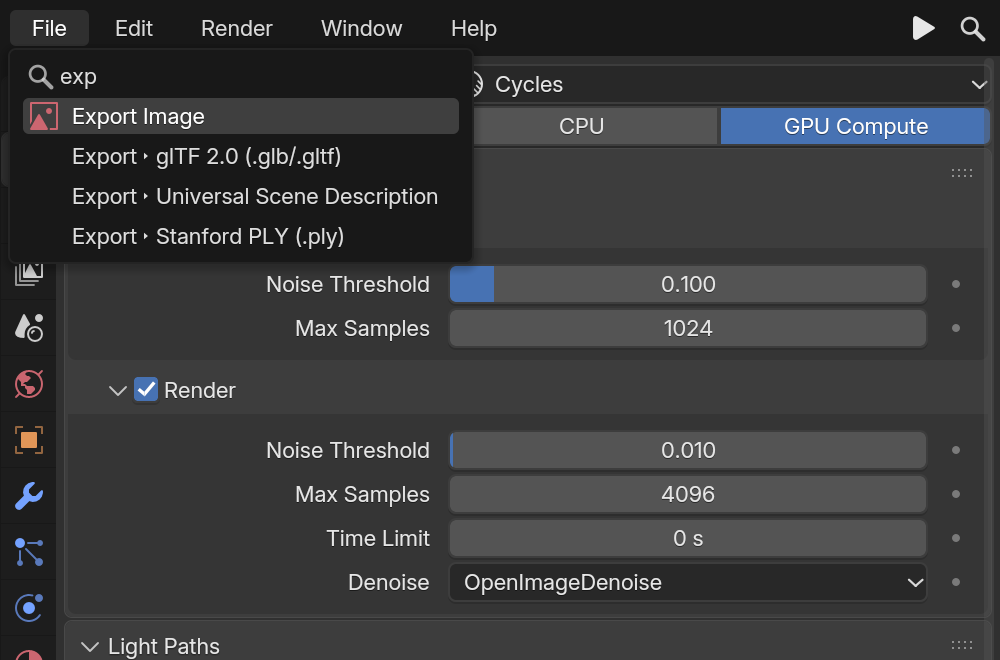
examples/site/render_props.py).- Press, drag, release. Press a menu button, drag to an item and let go to pick it. A plain click works too.
- Hover to switch. While one menu-bar menu is open, hovering another opens it. Hovering an item with a submenu opens the submenu.
- Type to search. In an open menu, start typing to search every item. The search is Blender’s fuzzy string search: “ad cu” finds “Add Cube”, typos are forgiven, and your recent picks rank first.
- Pie menus. A pie menu opens around the pointer. Flick toward an item to pick it.
Undo
Ctrl+Z undoes the last UI edit and Ctrl+Shift+Z (or Ctrl+Y) redoes it, in every widget.
- A burst of typing is one step.
- A multi-field drag is one step.
- Inside a text field, undo works while you type, too.
From Python, app.ctx.undo() and app.ctx.redo() do the same from code.
Keyboard and tooltips
- While editing a field, Tab and Shift+Tab move to the next or previous field. Esc cancels the edit.
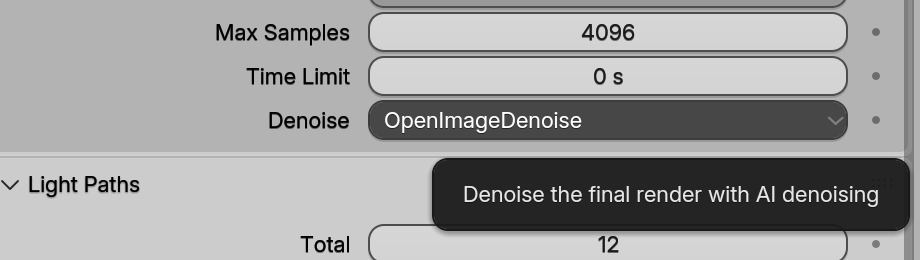
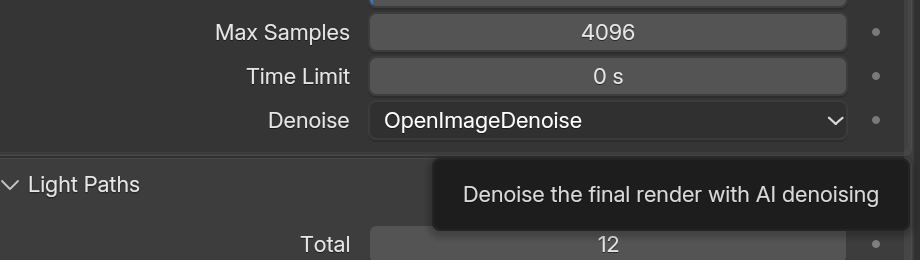
- Hover a widget for half a second (Blender’s tooltip delay) to see its tooltip.
examples/site/render_props.py).Next steps
Last updated