
Your first app, in Qt syntax
Build a small export dialog with QApplication, layouts and signals, drawn by BUI in Blender's look. No Qt or PySide install needed.
- 15 minutes
- Partial API
- Python
If you’ve written Qt before, you already know how to build this app: a QApplication, a few widgets in layouts, and signals connected to slots. BUI runs that style of code on its own engine, so you get Blender’s widgets without installing Qt or PySide.
By the end you’ll have an export dialog where dragging a slider moves a progress bar, and a button that reads every field.
The finished app
import sysfrom blenderui.qtsyntax import (QApplication, QWidget, QVBoxLayout, QHBoxLayout,                                QFormLayout, QLineEdit, QComboBox, QSlider,                                QProgressBar, QPushButton, QLabel, Qt)
app = QApplication(sys.argv)
window = QWidget()window.setWindowTitle("Export")layout = QVBoxLayout(window)
form = QFormLayout()name = QLineEdit()name.setPlaceholderText("file name")kind = QComboBox()kind.addItems(["glTF", "FBX", "OBJ"])quality = QSlider(Qt.Horizontal)quality.setRange(0, 100)form.addRow("Name:", name)form.addRow("Format:", kind)form.addRow("Quality:", quality)layout.addLayout(form)
bar = QProgressBar()quality.valueChanged.connect(bar.setValue)layout.addWidget(bar)
status = QLabel("Ready.")layout.addWidget(status)
def export():    status.setText("Exporting %s as %s at %d%%" % (        name.text() or "untitled", kind.currentText(), quality.value()))
buttons = QHBoxLayout()go = QPushButton("Export")go.clicked.connect(export)cancel = QPushButton("Close")cancel.clicked.connect(app.quit)buttons.addWidget(go)buttons.addWidget(cancel)layout.addLayout(buttons)
quality.setValue(75)bar.setValue(quality.value())window.resize(360, 190)window.show()sys.exit(app.exec())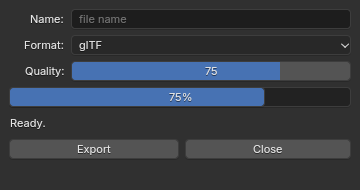
export_dialog.py, drawn by BUI at its real size.Build it, step by step
-
Start the application and a window.
export_dialog.py import sysfrom blenderui.qtsyntax import QApplication, QWidgetapp = QApplication(sys.argv)window = QWidget()window.setWindowTitle("Export")window.resize(360, 190)window.show()sys.exit(app.exec())- The import is the only line that’s different from PySide or PyQt:
blenderui.qtsyntaxinstead ofPySide6.QtWidgets. QApplicationmust exist before any widget, as in Qt.window.show()asks for the window;app.exec()opens it and runs the event loop, the part that waits for input. It returns when every window is closed, or when you callapp.quit().
- The import is the only line that’s different from PySide or PyQt:
-
Lay out a form.
layout = QVBoxLayout(window)form = QFormLayout()name = QLineEdit()name.setPlaceholderText("file name")kind = QComboBox()kind.addItems(["glTF", "FBX", "OBJ"])quality = QSlider(Qt.Horizontal)quality.setRange(0, 100)form.addRow("Name:", name)form.addRow("Format:", kind)form.addRow("Quality:", quality)layout.addLayout(form)QVBoxLayout(window)stacks things vertically and owns the window’s contents. Passing the window is the same as callingwindow.setLayout(layout)later.QFormLayout.addRowputs a label next to each field.- On BUI,
QLineEditis a Blender text field,QComboBoxa Blender dropdown andQSlidera Blender slider. You’ll feel the difference in a moment.
-
Connect a signal.
bar = QProgressBar()quality.valueChanged.connect(bar.setValue)layout.addWidget(bar)A signal is an event a widget announces; a slot is any function you connect to it. Here, every time the slider’s value changes, BUI calls
bar.setValuewith the new value. Slots can be any Python callable: a method, a function, alambda. -
Add a label and buttons.
status = QLabel("Ready.")layout.addWidget(status)def export():status.setText("Exporting %s as %s at %d%%" % (name.text() or "untitled", kind.currentText(), quality.value()))buttons = QHBoxLayout()go = QPushButton("Export")go.clicked.connect(export)cancel = QPushButton("Close")cancel.clicked.connect(app.quit)buttons.addWidget(go)buttons.addWidget(cancel)layout.addLayout(buttons)clickedsends acheckedargument (abool), as in Qt.exporttakes none, and that’s fine: on BUI, a slot that takes fewer arguments than the signal sends simply gets fewer. -
Set starting values.
quality.setValue(75)bar.setValue(quality.value())We set the bar too, because the window isn’t open yet. In our testing, a
setValuebefore the window opens doesn’t emitvalueChanged, so connected slots don’t run. Once the window is up, every change does.
Run it
python export_dialog.pyNow try it:
- Drag the slider and watch the progress bar follow. Hold Shift to move it slowly.
- Click the slider and type a number, or a sum like
50+25: it’s a Blender slider, so it evaluates math.QLineEditstays a plain text field. - Type a name, pick a format, and click Export: the label updates.
- Press Ctrl+Z to undo an edit.
How Qt maps onto BUI
There’s no Qt underneath. Each Qt widget is a node in BUI’s C runtime, the kit:
QVBoxLayoutandQHBoxLayoutrun on the kit’s box layout, written in C, with Qt’s rules for stretch factors and spacing.QGridLayoutandQFormLayoutrun on the kit’s grid layout.- Signals are plain Python objects.
app.exec()opens a native window (Win32, X11 or Cocoa), or a Tk-hosted one if you setBUI_HOST=tk.
So the layout, input and drawing are fast native code, and your Python only builds the tree and handles signals.
Next steps
Last updated