
The DOM-like API
Build native windows from plain JavaScript with createElement, Tailwind classes, events and signals. No React, no browser, no build step.
- Node.js
- Bun
- JavaScript
If you’ve ever written document.createElement, you already know this API. @blender-ui/native gives you the DOM’s shape, Tailwind classes and signals, and draws the result in a native window with BUI’s engine. There’s no browser underneath and no webview: just your script, Node.js or Bun, and a small native addon.
It’s also the layer the React renderer is built on, so everything here works there too.
A counter in 15 lines
const { App, signal } = require('@blender-ui/native')
const app = new App({ gpu: true })const win = app.window({ title: 'Hello', width: 360, height: 220 })win.body.setAttribute('styled', '') // Blender's look for the whole pagewin.body.className = 'm-0 p-6 flex flex-col gap-3 bg-[#2b2b2b] text-[#e6e6e6]'
const clicks = signal(0)const label = win.createElement('span')label.textContent = clicks // bound: the text follows the signalconst button = win.createElement('button')button.textContent = 'Add one'button.addEventListener('click', () => clicks.value++)win.body.appendChild(label)win.body.appendChild(button)
Run it with node counter.js or bun counter.js. A window opens with a number and a button. Click the button and the number goes up.
What’s going on:
new App(...)starts BUI. It runs its own UI thread, so your script stays free.app.window(...)opens a native window. Itsbodyis the root element, likedocument.body.setAttribute('styled', '')gives everything inside Blender’s look. Without it, HTML elements look like a browser’s defaults.signal(0)is a value that remembers who’s showing it. Assigning it totextContentbinds the label to it, soclicks.value++updates that one text node and nothing else. Signals have their own page.
The app and its windows
const app = new App({ gpu: true, headless: false, quitOnLastWindowClosed: true })const win = app.window({ title: 'Tool', width: 400, height: 300, resizable: true })win.on('close', () => console.log('bye'))new App(options) |
What it does |
|---|---|
gpu |
Draw on the GPU (Direct3D 11 on Windows, OpenGL on Linux). Off by default: the CPU renderer draws the same pixels. |
slug |
GPU text from glyph outlines (Slug, the default) or a per-glyph atlas. app.setSlug(on) changes it later. |
headless |
No native windows: renders off-screen, for tests and CI. |
quitOnLastWindowClosed |
Quit when the last window closes. Default true. |
app.window(options) takes title, width, height, resizable and gpu (to choose per window). app.quit() closes every window and ends the UI thread, so Node can exit.
A window gives you body, createElement(tag), createTextNode(text), requestAnimationFrame(cb), screenshot(), click(x, y), close() and on('close', fn).
Elements and attributes
The tree behaves like the DOM: appendChild, insertBefore, removeChild, remove(), parentNode, childNodes, firstChild, nextSibling and friends.
- Moving a node:
appendChildorinsertBeforeon a node that already has a parent moves it. - Mistakes throw: inserting a node into itself, or before a node that isn’t a child, throws an error, as in a browser.
- Freeing:
destroy()frees a removed subtree natively. Call it when you won’t use the nodes again.
Elements are HTML elements (div, span, button, input, h1 …), laid out with CSS and drawn natively by BUI. They take the usual attributes:
class/className, including Tailwind classes:'p-4 flex gap-2 bg-[#4772b3]'.style, as a CSS string ('color: red') or an object ({ backgroundColor: 'red', width: 40 }).id,href,value,srcand the rest, throughsetAttribute.
Any attribute, style and textContent can be a signal: the node then follows it. Setting a plain value later unbinds the signal.
Blender’s widgets
Capitalized tag names are Blender’s own widgets, always drawn and handled the Blender way:
const size = win.createElement('NumberSlider')size.setAttribute('min', 0)size.setAttribute('max', 10)size.setAttribute('value', 2.5)win.body.appendChild(size)The names are Button, Checkbox, Radio, NumberField, NumberSlider, TextField, TextArea, ColorSwatch, Dropdown and ProgressBar. Each one is an HTML element underneath (NumberSlider is <input type="range">), so it takes the same attributes. Their lowercase twins look like a browser’s form controls, except inside a styled element, where they look like Blender’s too.
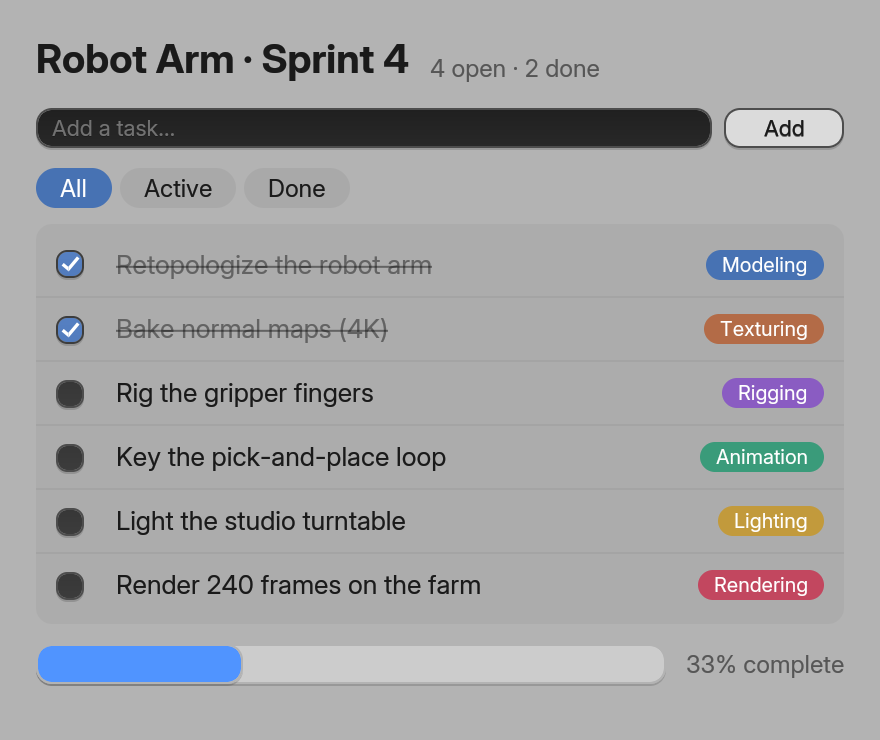
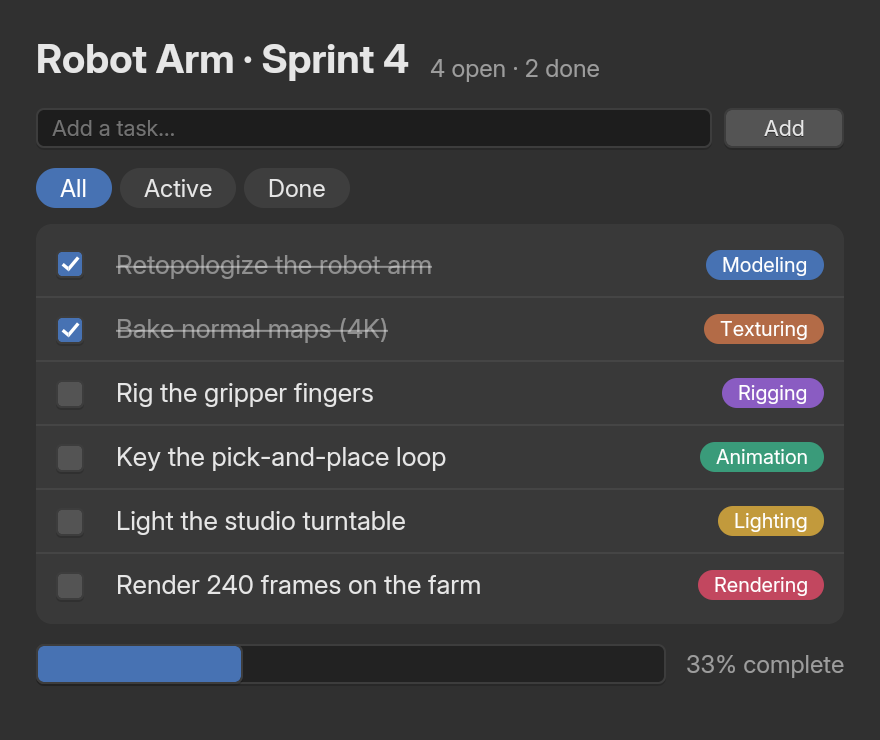
examples/site/js/todo_dom.js).Events
button.addEventListener('click', (event) => { console.log(event.clientX, event.clientY, event.shiftKey)})The events are click, mousedown, mouseup, mousemove, mouseenter, mouseleave, wheel, keydown, keyup, input and change. The event object carries target, currentTarget, clientX/clientY, button, deltaY, key, the modifier flags (shiftKey, ctrlKey, altKey, metaKey) and timeStamp.
- They bubble, except
mouseenterandmouseleave, as in the DOM.stopPropagation()andstopImmediatePropagation()work. event.targetis the deepest element listening for that event type.preventDefault()only marks the event. Events reach JavaScript after BUI has already handled them, so it can’t cancel what BUI did.- Form controls keep their latest value: read
el.valueorel.checkedafter aninputorchangeevent.
Frames and measuring
let hue = 0function tick () { hue = (hue + 2) % 360 box.style = { backgroundColor: `hsl(${hue} 60% 50%)` } win.requestAnimationFrame(tick)}win.requestAnimationFrame(tick)win.requestAnimationFrame(cb)runscbbefore the next frame, paced by the display. What you change inside it renders in that same frame.cancelAnimationFrame(id)stops it.el.getBoundingClientRect()andwin.screenshot()return promises, because the answer comes from the UI thread.- Changes are sent once per tick.
win.flush()sends them right away, if you ever need to.
Testing without a window
new App({ headless: true }) renders off-screen. Combine it with win.click(x, y) and win.screenshot() to test a UI in CI:
const { App } = require('@blender-ui/native')
const app = new App({ headless: true })const win = app.window({ width: 200, height: 100 })const button = win.createElement('button')button.textContent = 'Go'let clicked = falsebutton.addEventListener('click', () => { clicked = true })win.body.appendChild(button)
button.getBoundingClientRect().then(async (r) => { win.click(r.x + 5, r.y + 5) const shot = await win.screenshot() // { width, height, data } in RGBA console.log(shot.width, shot.height) setTimeout(() => { console.log('clicked:', clicked); app.quit() }, 100)})How it stays fast
- Its own UI thread. BUI runs its message loop on a thread of its own. JavaScript is never blocked, and an idle window uses no CPU.
- Only changes cross. Your script keeps the tree. Each tick, a window sends one
Int32Arrayof operations plus a small string table to the UI thread. - A retained mirror. The UI thread keeps its own copy of the tree, so layout caches and form state persist, and a
stylestring is parsed once, when you set it.
The numbers, with their context, are on the standalone executables page.
Next steps
Last updated